How to Play
Sudokuwu has four games — Sudoku, Queens, Shape Link, and Countdown — sharing a common toolbar and control scheme, with a couple of exceptions noted below. This page walks through the controls every game shares, then the rules and input method specific to each one.
Controls every game shares

Choosing a game and difficulty
The row of pill buttons above the board switches between games (Sudoku / Queens / Shape Link / Countdown). Sudoku, Queens, and Shape Link share a second row for difficulty (Easy / Medium / Hard) - switching either one swaps in a fresh puzzle for that combination, and your progress on the puzzle you left is kept, so you can freely check another mode or difficulty and come back. Countdown has no difficulty picker - see its own section below for why.
Timer and pausing
A live "Time: mm:ss" counter tracks how long you've spent on the current puzzle. Find it distracting? The eye icon next to it hides the display without stopping the clock (your final time is still recorded and shareable). The "⏸ Pause" button freezes the timer and blurs the board so you can step away mid-puzzle without it staring back at you.
Daily puzzle vs. practice puzzle
A badge above the board tells you which you're looking at: "📅 Today's daily puzzle" is the one puzzle per game and difficulty that every player gets that day, while "🎲 Practice puzzle" is generated fresh just for you. Tap "🎲 New practice puzzle" any time for an unlimited new one, or "🔄 Restart daily puzzle" to wipe your progress on today's daily and start it fresh — both leave the other one's progress untouched.
Sharing your result
Solve today's daily puzzle and a share button appears next to the "Solved! 🎉" banner, letting you copy or share a short text summary of your time and difficulty — handy for comparing with friends solving the same daily puzzle. Practice puzzles aren't shareable, since they're different for everyone.
Light mode and dark mode
The sun/moon button in the top-right corner switches between a light and a dark color theme. Sudokuwu remembers your choice for your next visit, and starts from your system's preferred theme the very first time you open it.
Playing Sudoku
Fill the 9×9 grid so every row, every column, and every 3×3 box contains each of the nine creatures exactly once — the same rule as classic Sudoku, just with creatures standing in for digits 1 through 9.
Given cells
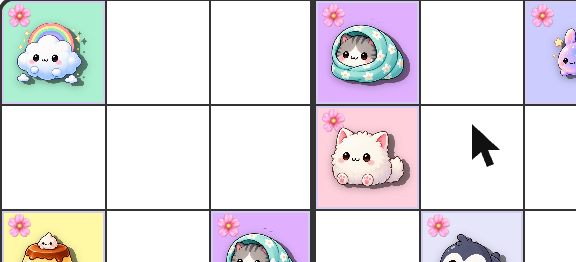
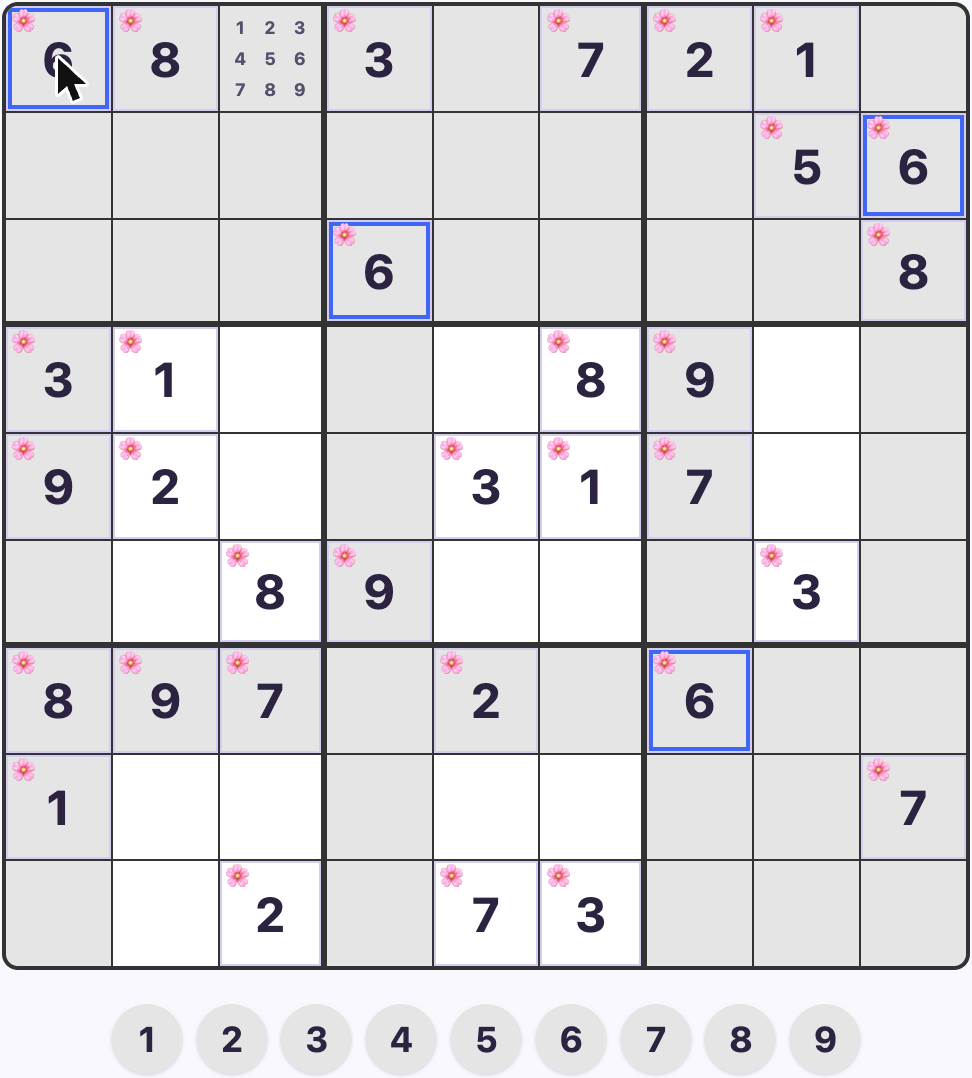
Every puzzle starts with some cells already filled in — these are the clues the rest of the solution is built around, and they can't be changed. Look for a small pink cherry blossom in the top-left corner of a cell to tell a given cell apart from one you've placed yourself.
The rotary dial
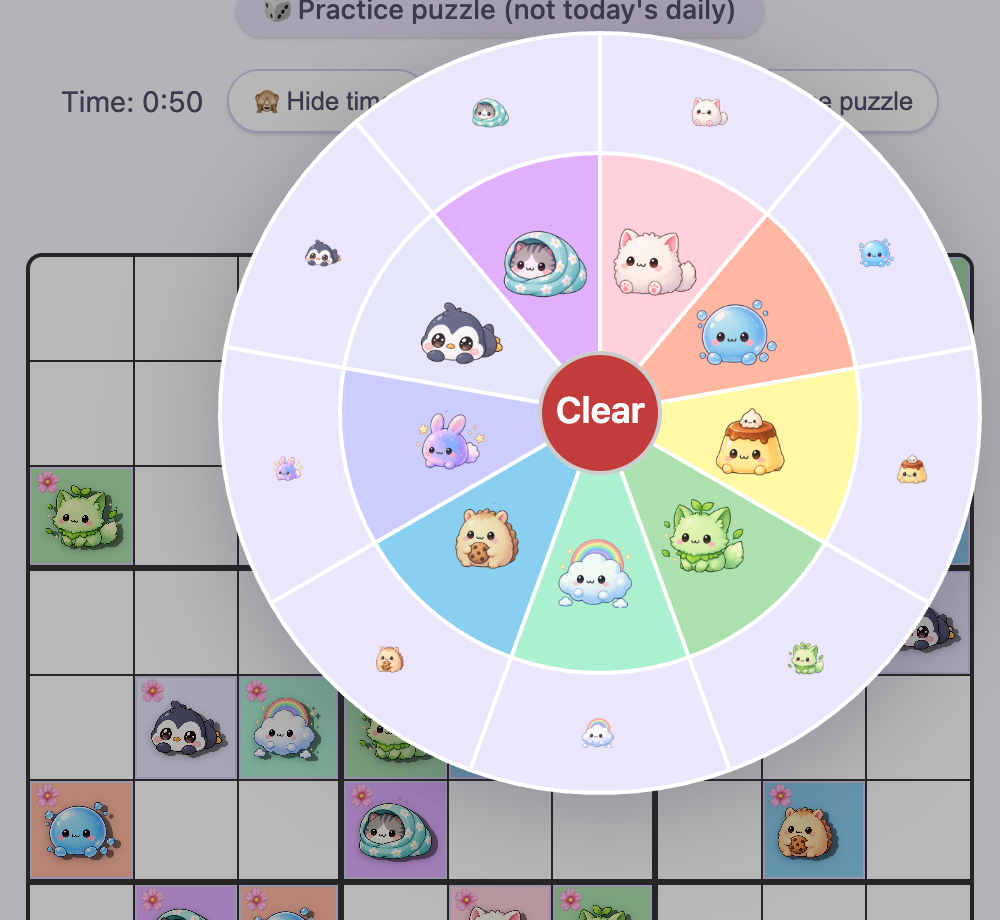
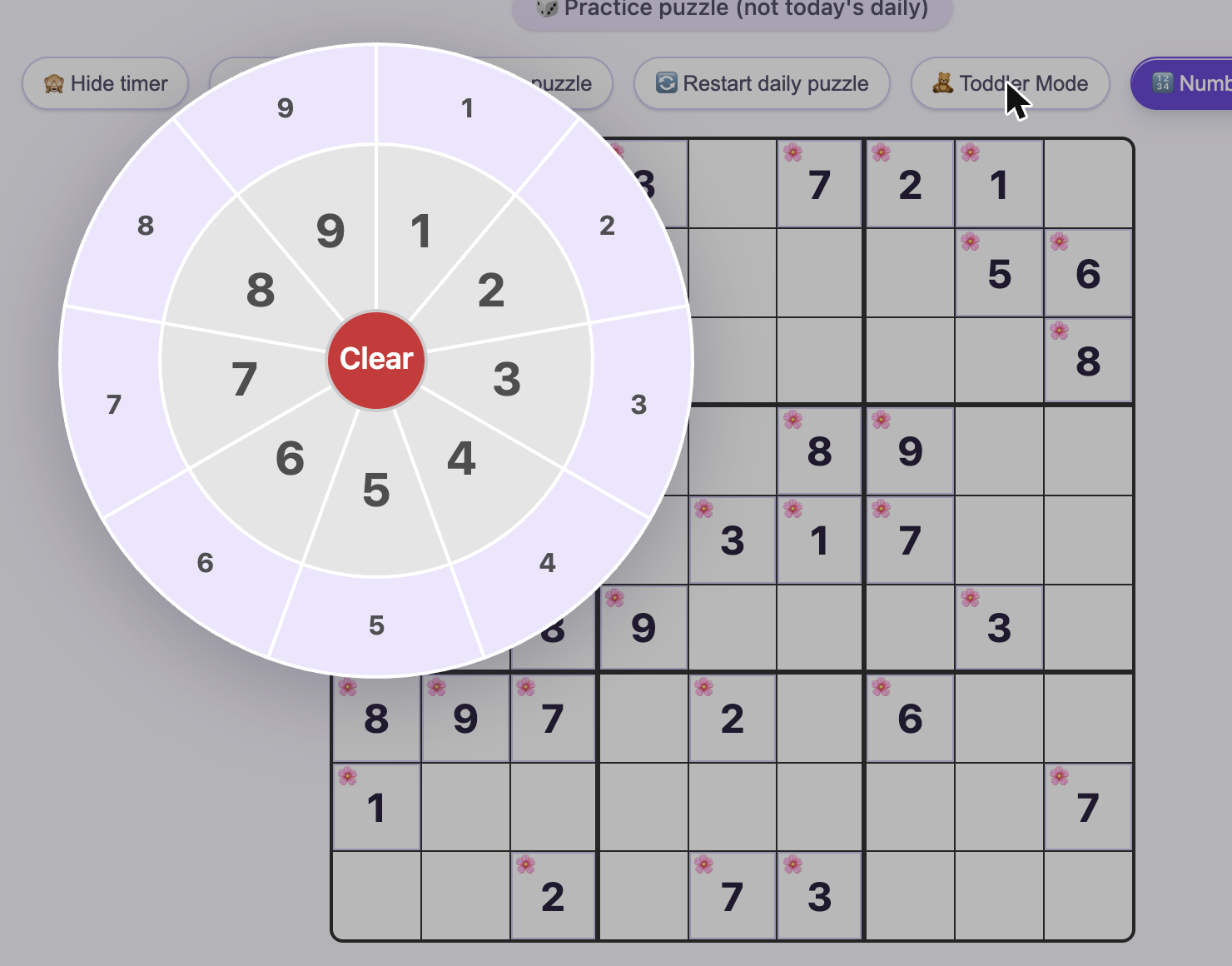
Press down on any editable cell and a ring of all nine creatures pops up around your finger or cursor. Drag out to a creature on the inner ring and release to set that cell's value.
Drag out to the matching creature on the outer ring instead, and release, to toggle a small pencil mark for that creature in the corner of the cell — useful for jotting down candidates without committing to one yet.
Drag back to the center hub and release to clear the cell entirely, wiping both its value and any pencil marks. A quick tap that never drags anywhere does nothing destructive — it's always safe to just tap a cell.
Speaking of tapping: a quick tap on a filled cell selects it and highlights every other cell holding that same creature, so you can see at a glance where it's already been placed. You can get the same highlight by tapping a creature's icon in the tray below the board.
Keyboard shortcuts
Click or tap a cell to focus it (or reach one with the navigation keys below), then type a digit 1 through 9 to set that cell's value - the same result as the rotary dial's inner ring, without needing to drag anywhere. Hold Shift while typing a digit to toggle a small pencil mark instead, matching the dial's outer ring. Backspace or Delete clears the cell's value, or its pencil marks if it's already empty.
The arrow keys move focus to the adjacent cell in that direction, so you can walk across the board one cell at a time without reaching for the mouse.
For longer jumps, Q W E / A S D / Z X C jump straight to the exact center of one of the board's nine 3×3 boxes - the three rows of keys mirror the board's own 3×3 arrangement of boxes, so Q jumps to the top-left box, S to the dead center of the whole board, C to the bottom-right box, and so on. Works the same whether or not Caps Lock is on.
Spotting mistakes
Placed the same creature twice in a row, column, or 3×3 box? Every cell involved in that mistake turns bold red right away, so it's never a surprise later in the solve — this works all the time, whether or not Toddler Mode (below) is turned on.
Toddler Mode
Toggle "🧸 Toddler Mode" in the toolbar above the board (next to "Restart daily puzzle") for extra visual guidance aimed at newer or younger solvers. It's entirely optional, off by default, and doesn't change the puzzle or the rules in any way — it just makes the existing constraints easier to see at a glance. Sudokuwu remembers your choice for next time, the same way it remembers your light/dark theme.
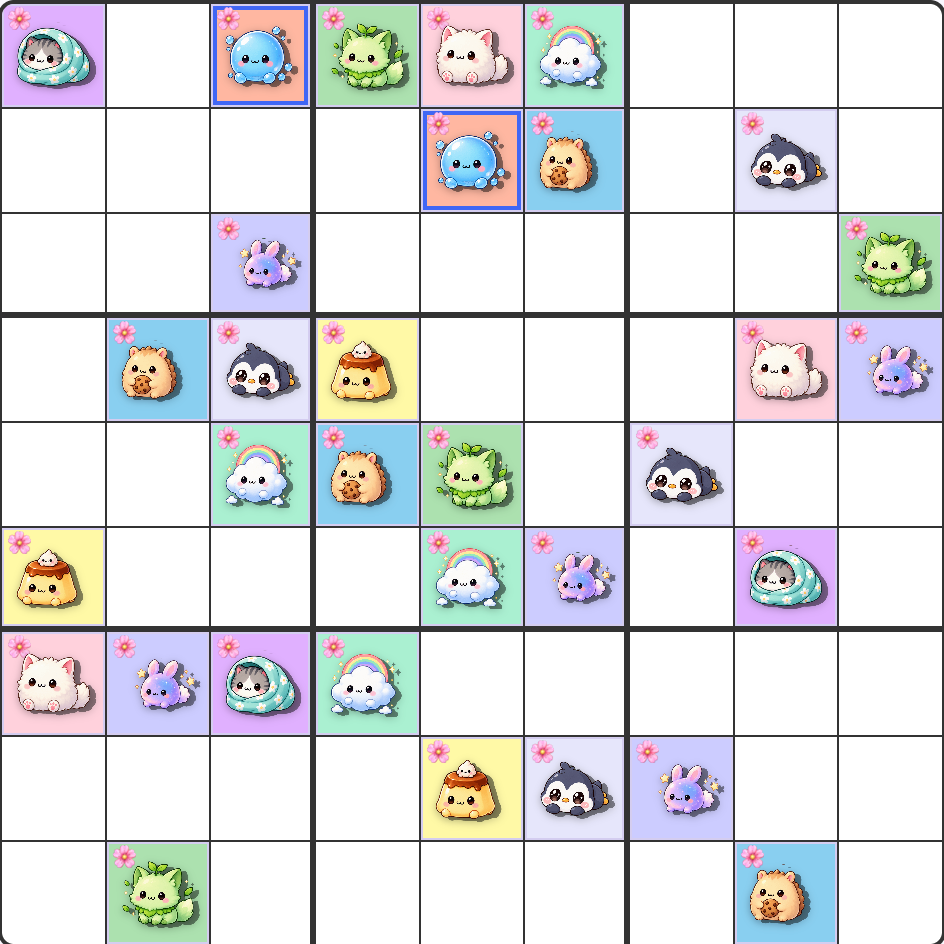
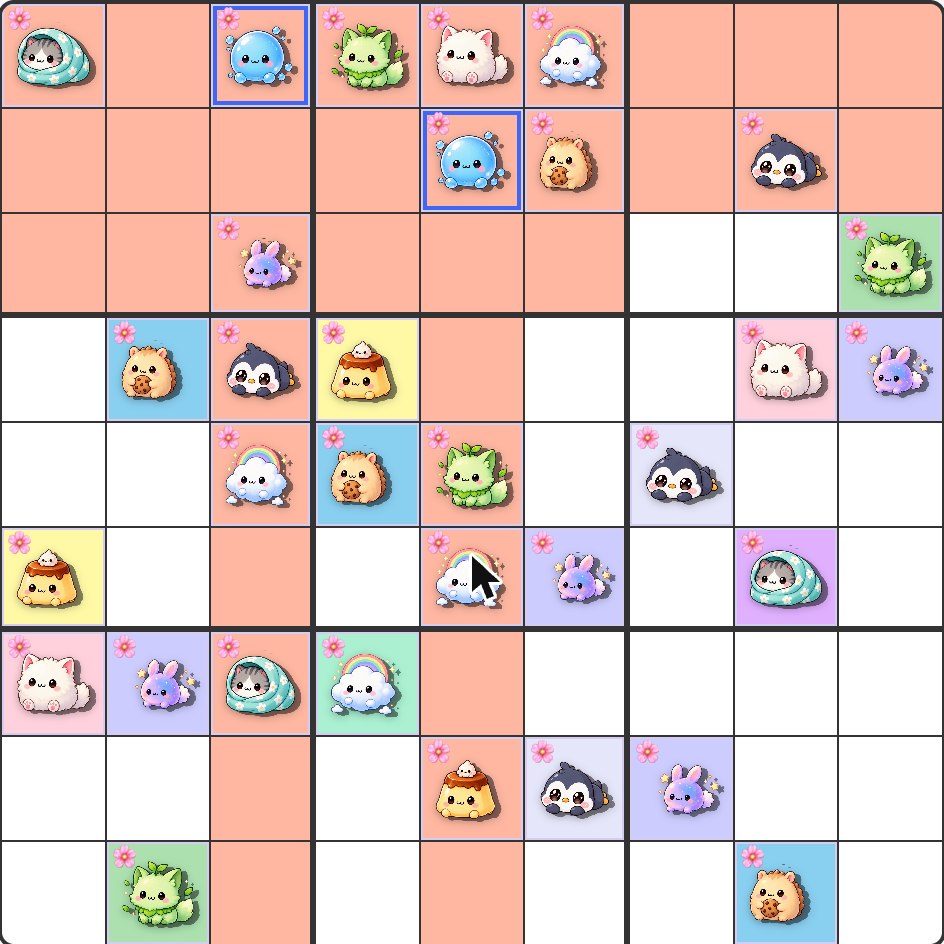
With Toddler Mode on, selecting a creature — by tapping one of its placed cells, or tapping its icon in the tray below the board — tints its entire row, column, and 3×3 box with that creature's own pastel color, on top of the usual highlight. That's every cell the creature can't legally go in right now, shown all at once, instead of a player having to scan the board and work it out themselves. Turning the toggle back off returns the board to its normal look immediately.
Numbers Only mode
Prefer plain digits to cute art? Toggle "🔢 Numbers Only" in the same toolbar, right next to Toddler Mode. It swaps every creature sprite for its digit everywhere one appears — filled cells, pencil marks, the creature tray below the board (which becomes a plain digit tray), and the rotary dial itself — while keeping each digit's own pastel color-coding exactly as-is, so that signal doesn't disappear along with the art. It's off by default and remembered the same way as your other preferences.
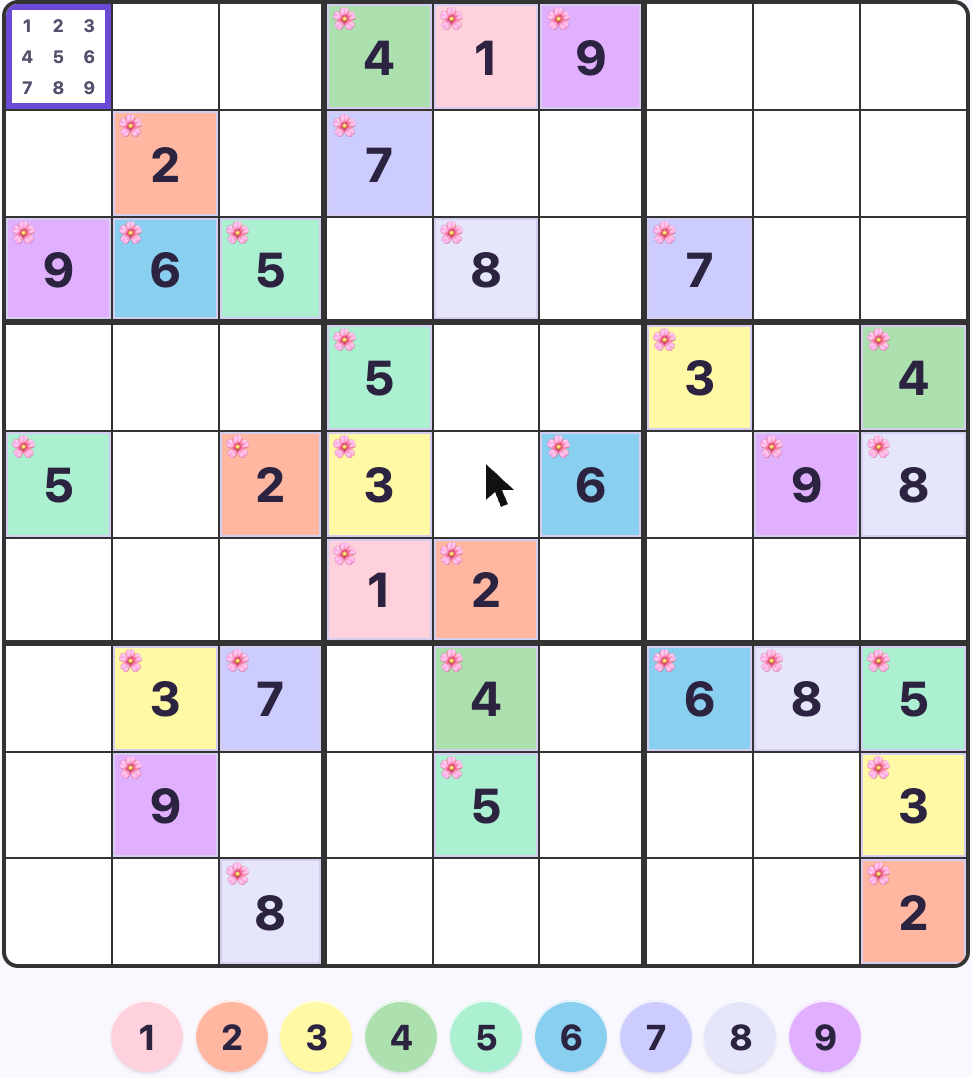
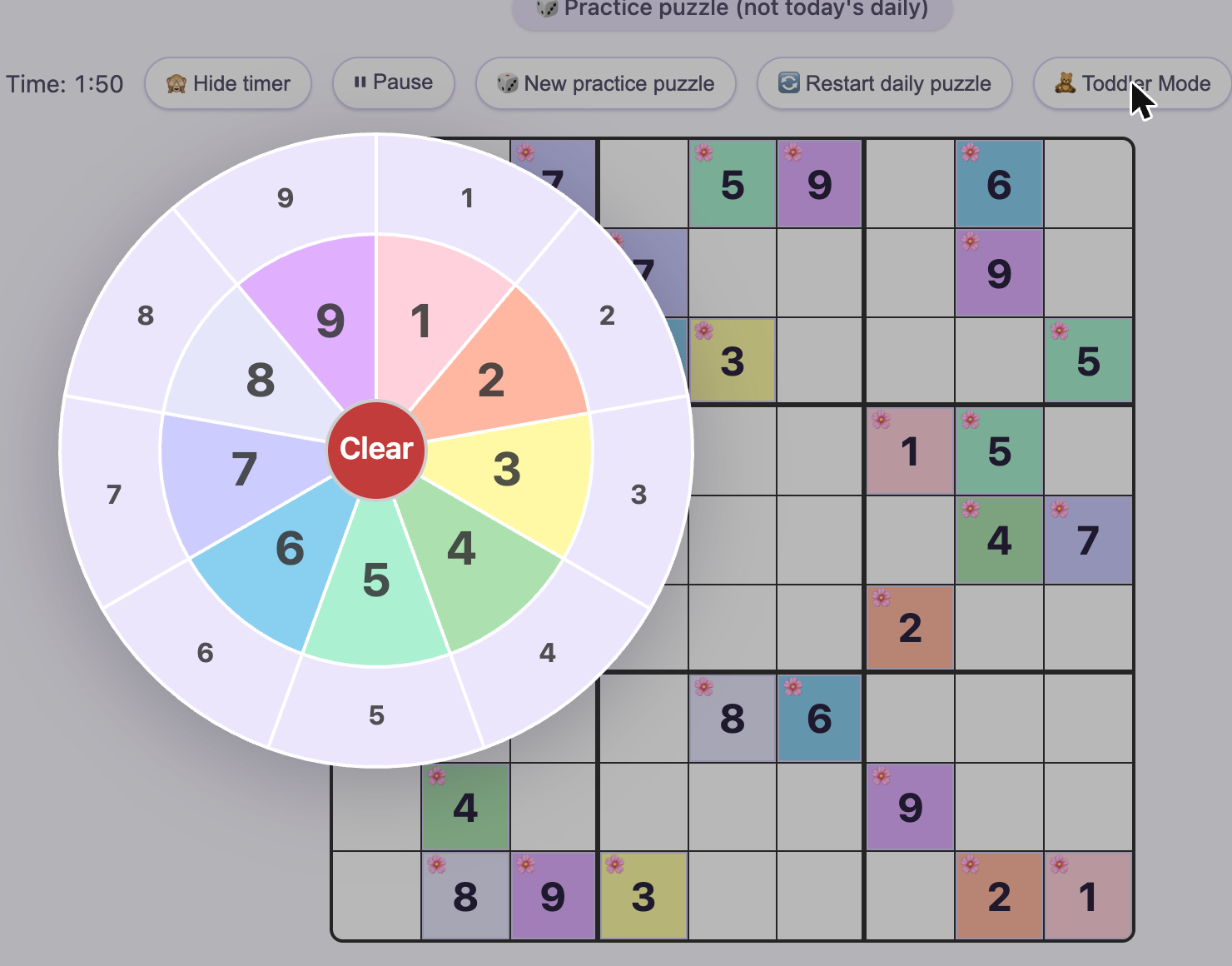
Numbers Only is completely independent of Toddler Mode - the two toggles don't affect each other, so any combination works: art with extra highlighting, plain digits with extra highlighting, or either one on its own.
Black & White mode
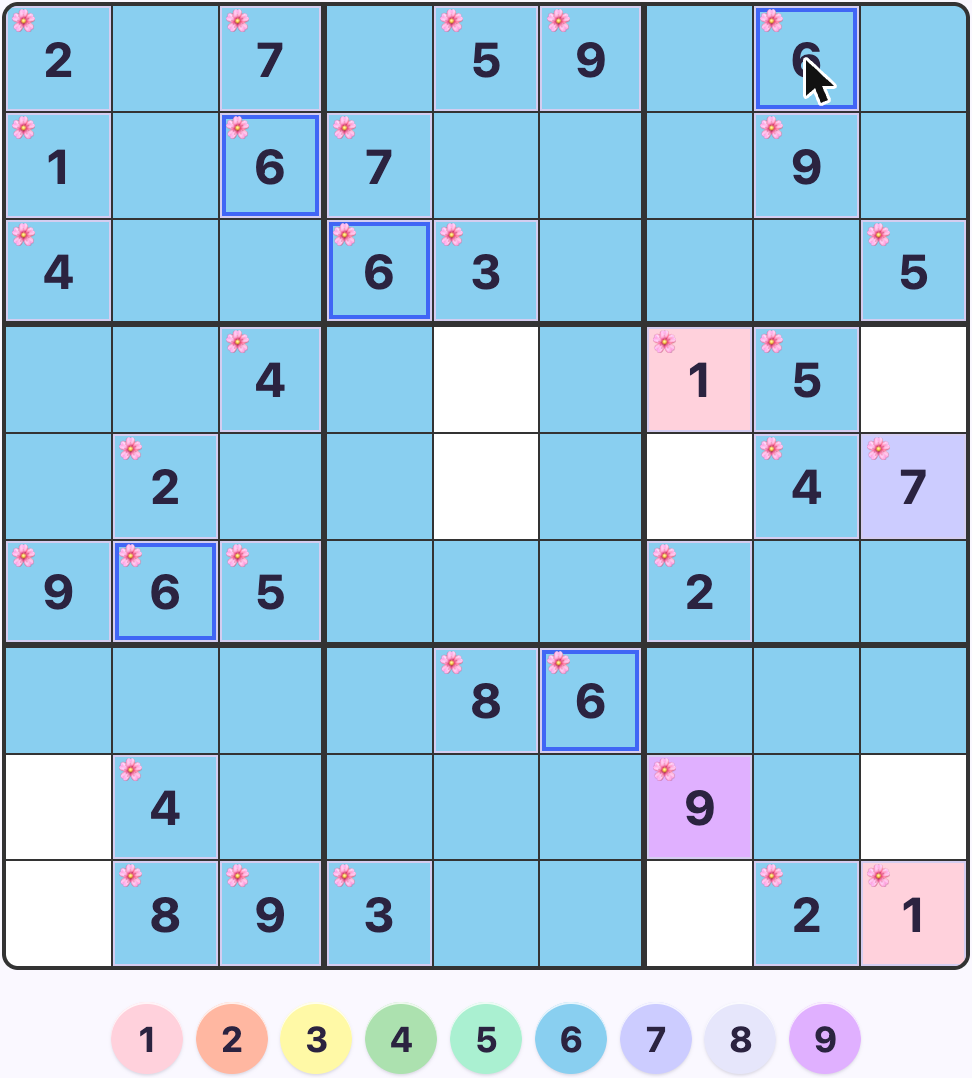
Want even less visual noise than Numbers Only alone gives you? Toggle "⬛⬜ Black & White" right next to it to strip out every pastel background too - board cells, the digit tray, and the rotary dial's colored ring all go plain gray/white, leaving just the digits themselves. This one only makes sense on top of Numbers Only (there'd be nothing left to read a creature's value from without its color), so the button stays disabled - grayed out and unclickable - until Numbers Only is turned on first. Turning Numbers Only back off later disables the button again but doesn't forget your Black & White preference - turn Numbers Only back on and it picks up right where you left it.

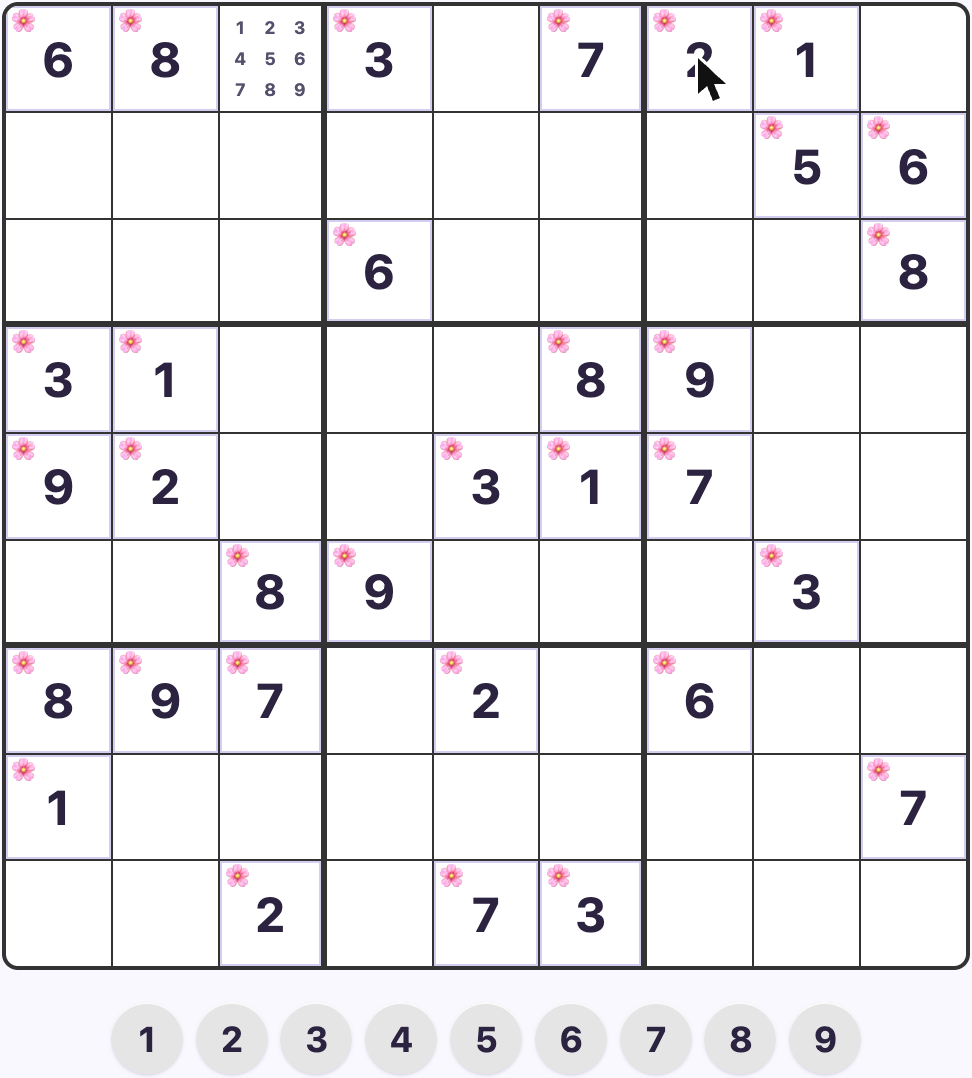
Black & White still works alongside Toddler Mode - the row/column/box band Toddler Mode adds renders as a light gray tint instead of a pastel one, and the same-digit highlight ring stays its usual blue in every combination, since that's a small functional accent rather than one of the per-digit pastel colors this mode removes.
Tip
Sudokuwu's creatures are deliberately cute, not deliberately hard to tell apart — every filled cell is also tinted with that creature's own pastel color, so you have two signals (shape and color) to scan by instead of just one. Combine that with the tap-to-highlight trick above to track a single creature across the whole board.
Playing Queens
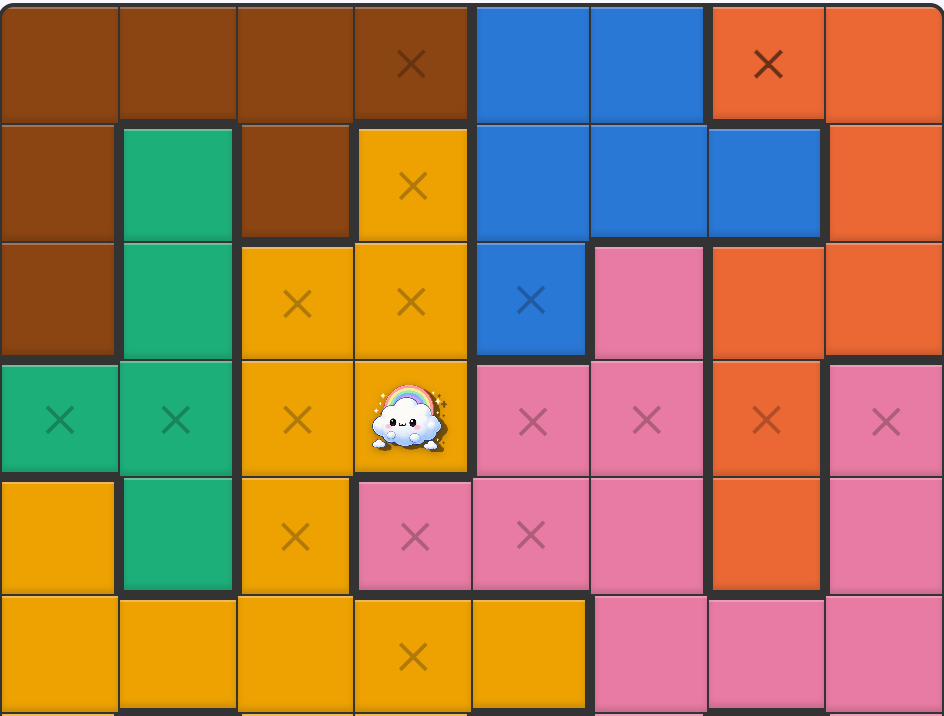
Place exactly one creature "queen" in every colored region so that no two queens share a row, a column, or even touch diagonally — no chess knowledge required, just careful elimination, one region at a time.
Click or tap a cell to cycle it through empty → X mark → queen → empty again. The X mark is just a note-to-self for "not here" and has no effect on the puzzle itself — use it freely to track cells you've ruled out while you narrow down each region.
To save you some of that bookkeeping, Sudokuwu automatically fades in a light X over every cell a placed queen already rules out by row, column, or diagonal touch. That auto-crossed X disappears the moment you place your own mark or queen there — it's purely advisory, and never blocks a move.
Tip
Start with the smallest or most boxed-in colored region — with fewer legal cells to consider, it often forces a placement (or at least a lot of eliminations) that cascades into the rest of the board.
Playing Shape Link
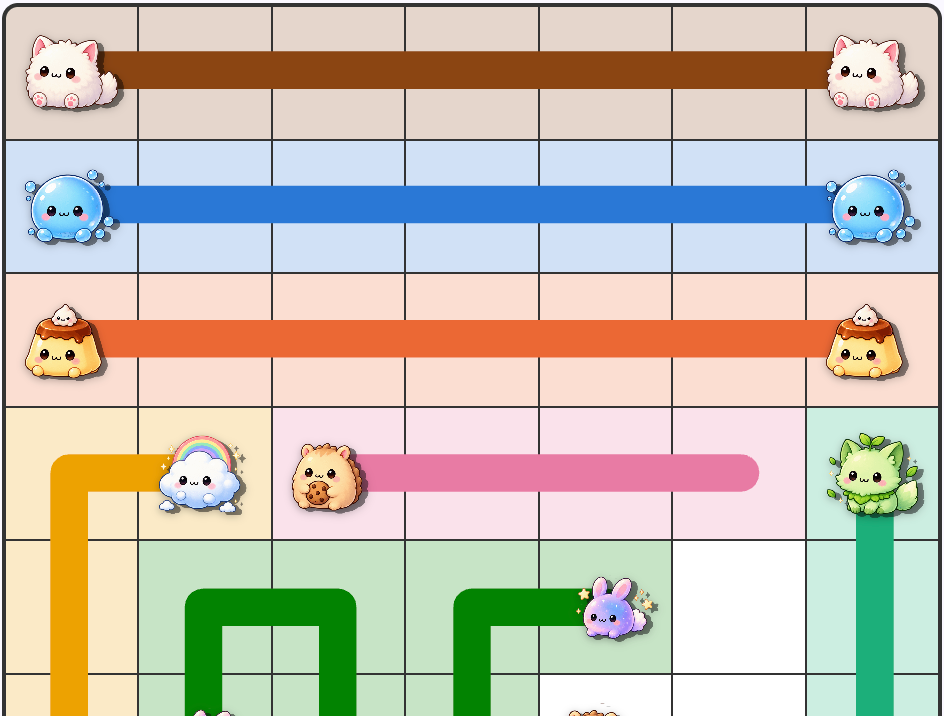
Every creature appears twice on the board, once per pair. Press down on one and drag through adjacent cells (up, down, left, right — no diagonals) to draw a path to its matching creature elsewhere on the grid.
The puzzle isn't solved just by connecting every pair — the paths together have to cover every single cell on the board with no gaps and no two paths crossing. A pair connected too directly, leaving empty cells stranded elsewhere, isn't a finished solution yet.
Changed your mind partway through a path? Drag back over cells you've already drawn to retract them, or tap that pair's icon in the tray below the board to clear the whole path and start it over. Dragging a new path through a cell already claimed by a different pair clears that other pair's path back to its two creatures automatically, so you can freely reroute as you go.
Tip
Work outward from corners and edges first — a creature sitting in a corner has only two possible directions to head in, which usually pins down the start of its path (and often a neighbor's, too) before the more open middle of the board does.
Playing Countdown
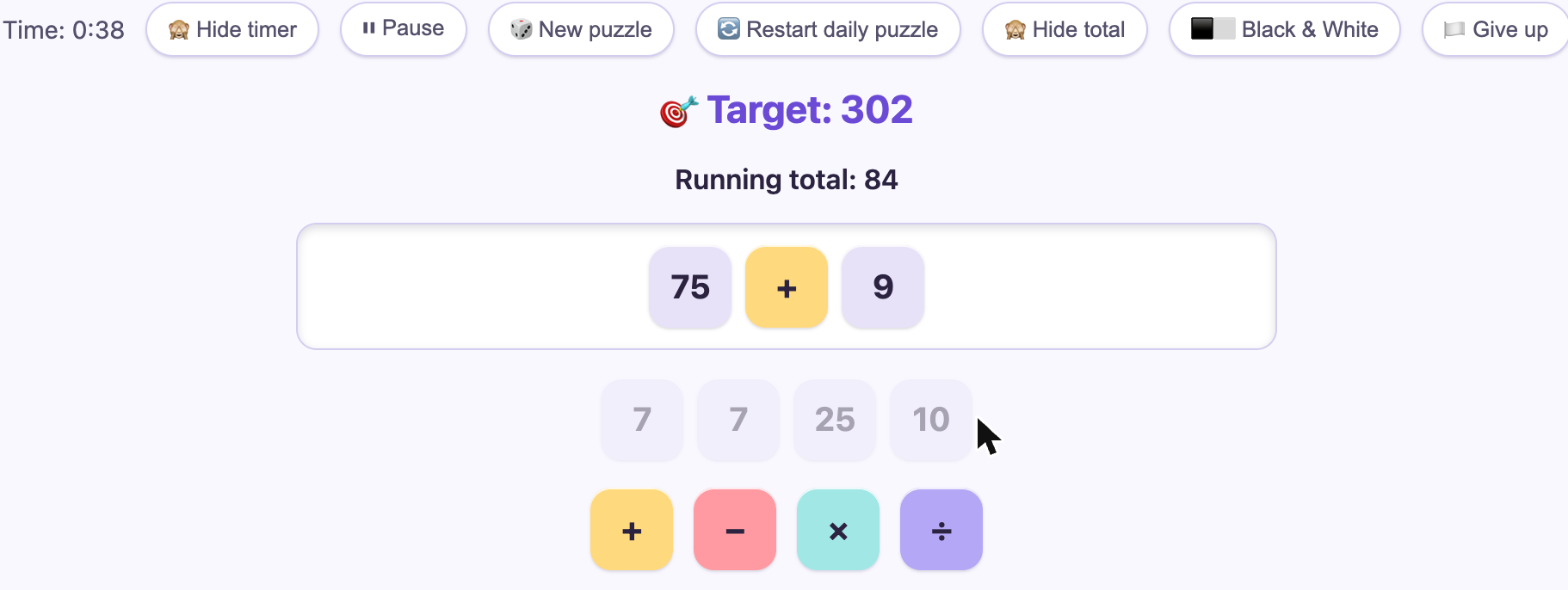
Countdown is a variation on the numbers round from Countdown, the long-running British game show that first aired in 1962: reach a target number using six drawn tiles and basic arithmetic. This version simplifies a couple of the original's rules for a cleaner tile-based interface - see below for exactly how.
The tiles and the target
Every round draws six number tiles: two "large" tiles from the set 25 / 50 / 75 / 100 (never duplicated - there's only one of each), and four "small" tiles from two full sets of 1 through 10 (so a small number can turn up twice, but never more). Alongside them, a random three-digit target between 100 and 999. Every puzzle Sudokuwu generates is guaranteed to have at least one exact solution, so it's always possible - never a matter of luck.
Building your sequence
Pull a tile upward (or just tap it) to place it - numbers and operators (+ − × ÷) alternate, one number, then an operator, then another number, and so on, snapping into place left to right. Your running total updates after every tile, evaluated strictly in the order you placed them rather than standard order of operations - so 6 + 75 × 3 means "add first, then multiply" ((6+75)×3), not the other way around.
A tile that would take the running total negative, or a division that doesn't come out to a whole number, is grayed out and can't be picked up at all - there's no way to make an illegal move, so you never need to backtrack out of one. The puzzle solves itself the instant your running total hits the target exactly - no submit button needed.
Undoing a tile
Tap the most recently placed tile to remove it. Removing a completed step's number sends just that number back to the tray - the operator that combined it stays selected and ready, so you can immediately try a different number with the same operator instead of reselecting it from the palette every time. Tap that re-armed operator again to remove it too, if you want to back out further.
Hiding the running total
Want to do the math in your head instead of watching it update live? Toggle "🙈 Hide total" in the toolbar to hide the running-total line for a harder challenge - it doesn't change how the puzzle is solved, just what's shown on screen.
Black & White mode
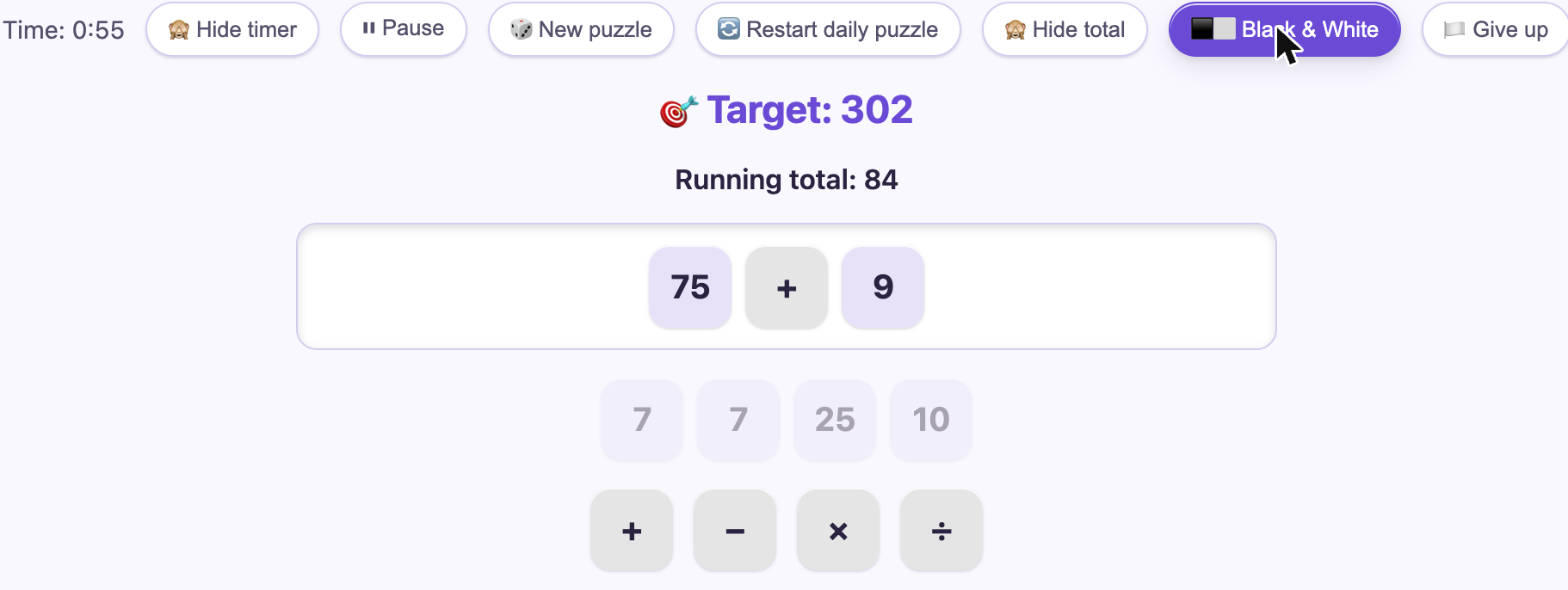
Toggle "⬛⬜ Black & White" to strip the pastel color from the four operator tiles, leaving plain gray tiles with just the +/−/×/÷ symbol to go by. Unlike Sudoku's Black & White mode, this one works on its own - there's no other toggle it depends on.
Stuck? Give up
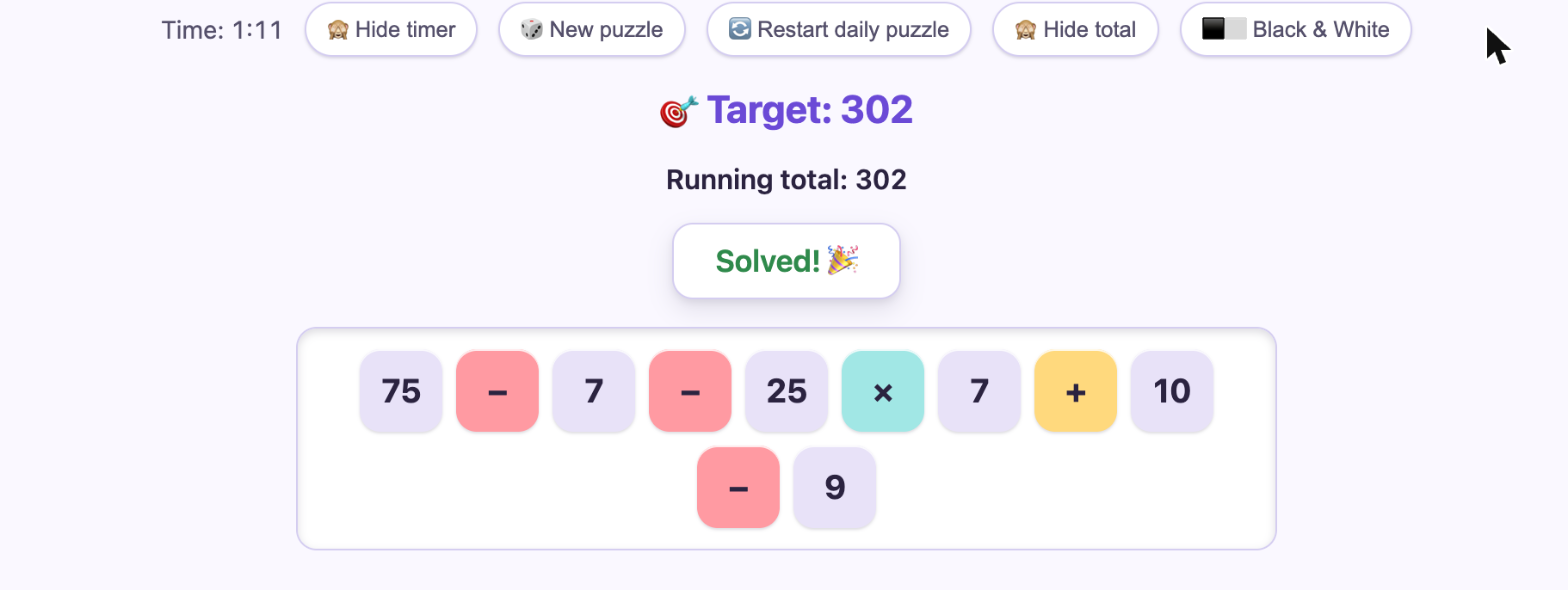
Tap "🏳️ Give up" at any point and Sudokuwu reveals one full valid sequence reaching the target, completing the puzzle for you. It's there so a genuinely tough target never leaves you stuck with no way forward - though naturally, it's not really a win.
Daily vs. practice, and difficulty
Countdown has one daily puzzle a day rather than one per difficulty, which is why it's the one game without a difficulty picker. Otherwise it works just like the others: "🎲 New puzzle" for an unlimited fresh practice round, "🔄 Restart daily puzzle" to wipe your progress on today's daily, and a share button next to the "Solved! 🎉" banner once you complete today's daily specifically.
Tip
Multiplying two of the larger numbers together early gets you within striking distance of the target fast; save the smaller numbers for fine adjustments with + and − at the end, once you're close.